A website backup is a saved copy of your entire website — all its files, images, and database — that you can restore if something goes wrong. It’s one of the simplest and most important things you can do to protect your business’s online presence, and yet it’s one of the most commonly neglected.
Here’s what you need to know about backing up your WordPress website, and how to make sure it’s being done properly.
Why Backups Matter
Websites can fail for a number of reasons — a plugin update that conflicts with your theme, a hacker who gains access to your files, a hosting provider issue, or simply an accidental deletion of content. Without a backup, recovering from any of these events can be extremely difficult, expensive, or in some cases impossible.
With a recent backup, recovery is straightforward — you simply restore the saved copy and your site is back to exactly as it was. The difference between having a backup and not having one can mean the difference between a 30-minute inconvenience and weeks of rebuilding.
What a Complete Backup Includes
A proper WordPress backup should include two components:
- Your website files — everything in your WordPress installation including themes, plugins, uploads, and configuration files.
- Your database — this contains all your content: pages, posts, settings, and any data submitted through forms.
A backup that only includes one of these two components is incomplete. Make sure whatever backup method you use captures both.
How Often Should You Back Up?
For most small business websites that don’t change frequently, a weekly automated backup is sufficient. If you update your website regularly — adding blog posts, updating products, or changing content frequently — a daily backup is a better choice.
You should also always take a manual backup immediately before making any significant change to your website, such as updating WordPress, changing your theme, or installing a new plugin.
How to Back Up Your WordPress Website
There are three main ways to back up a WordPress website:
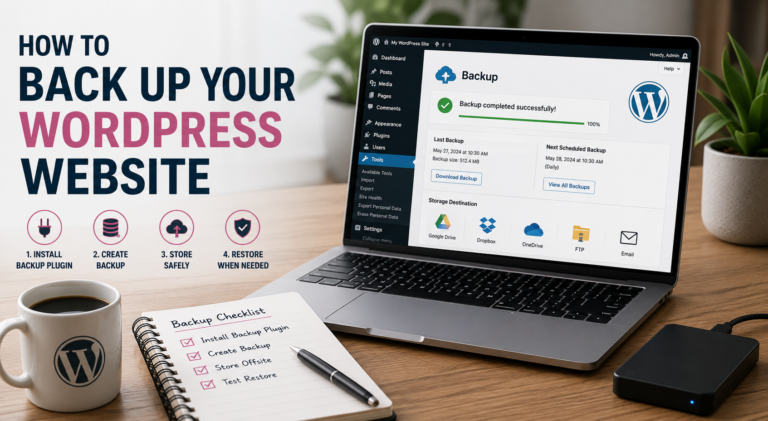
Using a backup plugin is the most common and practical approach for most business owners. Plugins like UpdraftPlus (free) allow you to schedule automatic backups and store them off-site — in Google Drive, Dropbox, or similar — so they’re safe even if your hosting server has a problem. Install it from the WordPress plugin directory and follow the setup wizard to schedule automated backups.
Using your hosting provider’s backup tool. Most reputable South African hosting providers offer automated backups as part of their plans, accessible through your hosting control panel (usually cPanel). Check whether your hosting plan includes backups and how to access them.
Manual backups via cPanel. If your hosting includes cPanel, you can download a full backup manually at any time through the Backup Wizard tool. This is useful as an occasional additional copy but isn’t practical as your only backup method since it requires manual action each time.
Where Should Backups Be Stored?
Never store your only backup on the same server as your website. If the server has a problem, you lose your backup along with your site. Always store at least one copy off-site — in Google Drive, Dropbox, or downloaded to your own computer.
Final Thoughts
Backing up your WordPress website is a small, simple habit that can save enormous amounts of time, money, and stress if something ever goes wrong. Set up automated weekly backups as a minimum, take manual backups before any major changes, and store copies in at least one off-site location.
At Webling Web Design, we include backups as a standard part of our maintenance plans. If you’d like us to handle your website’s maintenance and backups for you, get in touch for more information on our monthly maintenance packages.