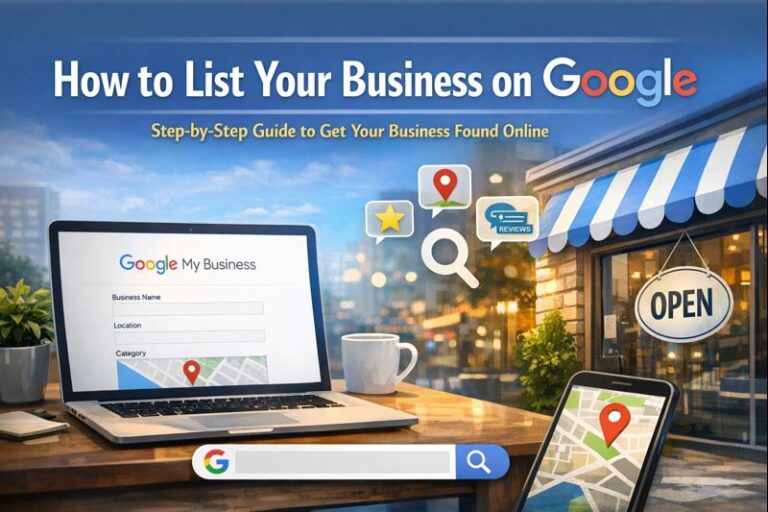
If you want more local customers to find your business online, listing your business on Google is one of the most important steps you can take. A Google Business Profile (formerly Google My Business) helps your business appear in Google Search and Google Maps when people look for services like yours.
In this blog post, we’ll cover:
- The key benefits of listing your business on Google.
- A clear, step-by-step guide to set it up correctly.
- Tips to optimise your listing for better visibility.
Benefits of Listing Your Business on Google
1. Get Found by Local Customers
When people search for businesses “near me” or in your area, Google Business Profiles are often shown first. This gives you prime visibility without paying for ads.
2. Appear on Google Maps
Your business can show up on Google Maps with directions, making it easy for customers to find your physical location.
3. Build Trust and Credibility
A verified Google listing with reviews, photos, and accurate information makes your business look professional and trustworthy.
4. Receive and Manage Customer Reviews
Reviews play a huge role in buying decisions. Google allows customers to leave reviews and lets you respond, helping you build a strong reputation.
5. Share Important Updates
You can post updates, offers, events, and announcements directly on your profile, keeping customers informed.
6. It’s Free
One of the best benefits: listing your business on Google costs nothing, yet it delivers long-term value.
Step-by-Step: How to List Your Business on Google
Step 1: Sign In to Google
Go to Google and sign in with your Google account. If you don’t have one, you’ll need to create a free Google account.
Step 2: Search for Your Business
Type your business name into Google. If it already appears, you may be able to claim it. If not, you’ll create a new listing.
Step 3: Add Your Business Name
Enter your official business name exactly as it appears on your website and branding. Avoid adding extra keywords.
Step 4: Choose Your Business Category
Select the category that best describes your business (for example: Web Designer, Plumber, Doctor, Restaurant). This helps Google show your business in the right searches.
Step 5: Add Your Location or Service Area
- If you have a physical location customers can visit, add your address.
- If you travel to customers, choose a service area instead.
Step 6: Enter Contact Details
Add:
- Phone number
- Website URL (if you have one)
Make sure these details are correct and match your website exactly.
Step 7: Verify Your Business
Google needs to confirm your business is real. Verification options may include:
- Postcard by mail
- Phone call or SMS
Once verified, your business can appear publicly on Google.
Step 8: Complete Your Business Profile
After verification, enhance your listing by adding:
- Business hours
- A clear business description
- High-quality photos (logo, interior, services, team)
A complete profile ranks better and attracts more customers.
Step 9: Ask for Reviews
Invite happy customers to leave reviews. Respond to all reviews—both positive and negative—to show professionalism and engagement.
Tips to Optimize Your Google Business Profile
- Use real photos instead of stock images
- Keep your opening hours updated
- Post updates regularly
- Respond to reviews promptly
- Ensure your name, address, and phone number are consistent everywhere online.
Final Thoughts
Listing your business on Google is one of the easiest and most effective ways to increase your online visibility, attract local customers, and build trust. By following these steps and keeping your profile updated, you’ll give your business a strong advantage in local search results.
If you need help setting up or optimizing your Google Business Profile, working with a professional can save time and ensure everything is done correctly. Need help, reach out to us at Webling for assistance.